In September 2026, Microsoft released the latest builds for the Windows 11 Insider Preview, pushing forward both feature validation and structural OS reforms. Driven by a major overhaul of the Windows Insider Program channels, a strategic scale-back of AI integration, and a comprehensive effort to improve user experience, this update marks a pivotal shift in Windows development.
- Release of New Preview Builds and Key Highlights
- Faster File Explorer Search and Refined Usability
- Cloud Rebuild and Low Latency Profiles for a Smoother Experience
- Reducing Eye Fatigue and Fortifying Core Security
- Channel Reorganization and the Introduction of Feature Flags
- Scaling Back AI Over-Integration and the Road Ahead for Windows 11
Release of New Preview Builds and Key Highlights
In September 2026, Microsoft rolled out a fresh suite of preview builds to the Windows 11 Insider Preview, spanning multiple testing channels including Beta (Build 26220.9492) and Experimental (Builds 26340.9502 and 28120.3032). This release introduces a wave of practical usability improvements and UI refinements designed to streamline day-to-day operations. On the accessibility front, the mouse indicator features a modernized animation design alongside a new keyboard shortcut to dismiss it, while Magnifier receives a high-contrast theme toggle to help reduce glare. Additionally, the border highlighting active capture areas during screen recording and screenshotting has been updated from yellow to a more distinct red. Together, these visual feedback enhancements deliver a more intuitive and comfortable operating environment across diverse user setups.
Faster File Explorer Search and Refined Usability
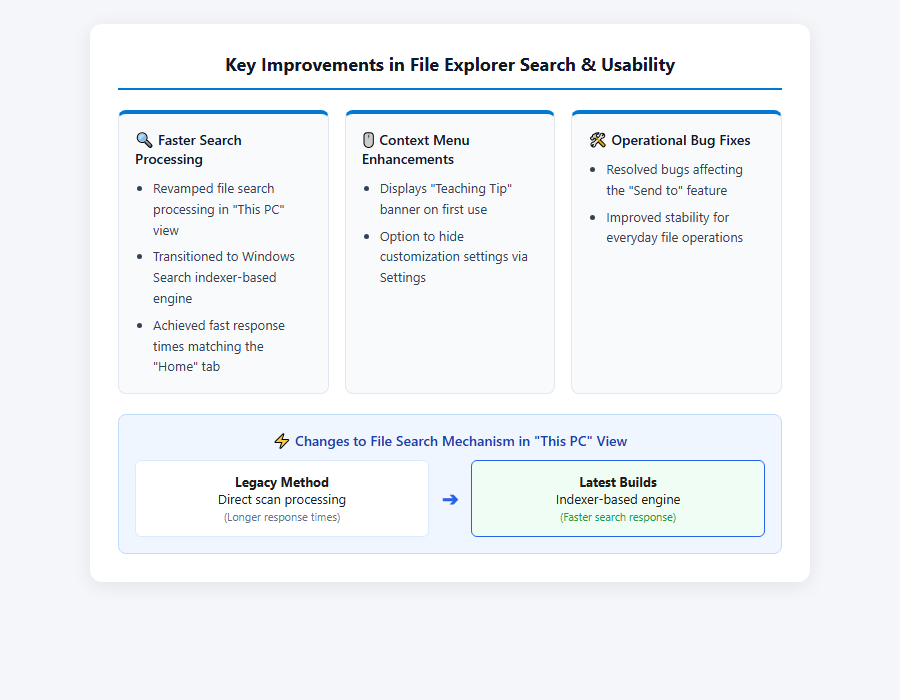
Practical usability upgrades extend directly to File Explorer and desktop interfaces, which users interact with daily. Most notably, searching from the “This PC” view in File Explorer has been transitioned to use the underlying Windows Search indexer mechanism, matching the fast response times previously found in the “Home” tab. Context menus have also been refined: a helpful “Teaching Tip” banner now guides users through customization options on their first right-click, and users can toggle off context menu customization entirely via Settings. Furthermore, minor bugs affecting the “Send to” menu have been addressed, ensuring smoother, more reliable file management. As shown in the image below, these interface adjustments significantly streamline menu interactions.
Advancements in System Performance and OS Recovery
Cloud Rebuild and Low Latency Profiles for a Smoother Experience
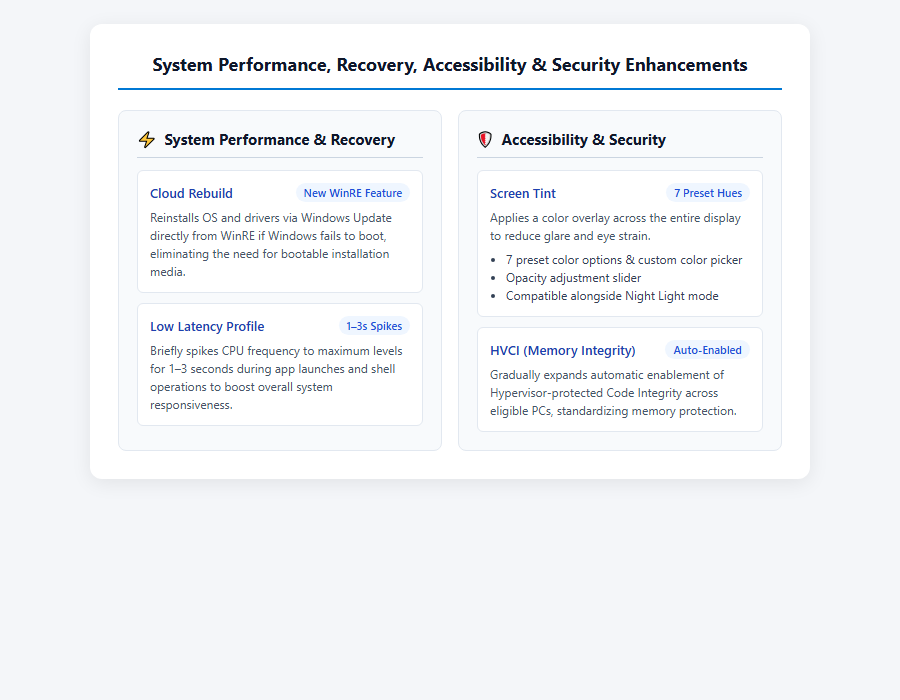
A standout highlight from a system administration and troubleshooting perspective is the introduction of “Cloud rebuild,” a groundbreaking recovery feature integrated into the Windows Recovery Environment (WinRE). Even if Windows fails to boot entirely, Cloud rebuild enables users to reinstall a fresh copy of the OS alongside necessary drivers directly over the network via Windows Update—eliminating the need for bootable USB drives or custom installation media. On the performance front, Microsoft expanded the application of “Low Latency Profile” technology. By briefly spiking CPU frequencies to maximum levels for 1 to 3 seconds during app launches and when opening the Start menu or Search panel, this feature significantly boosts overall system responsiveness across the shell.
Reducing Eye Fatigue and Fortifying Core Security
Addressing eye strain and light sensitivity during long work sessions, Build 28020.2298 (Beta) introduces “Screen Tint,” a new accessibility tool that applies a customizable color overlay across the entire display. Screen Tint offers seven preset hues, custom color picker options, and an opacity adjustment slider, all fully compatible alongside Night Light mode. On the security front, Microsoft continues to strengthen hardware-backed protection by automatically enabling Hypervisor-protected Code Integrity (HVCI, or Memory Integrity) across eligible systems that meet hardware requirements. By respecting user settings and IT enterprise policies, this rollout standardizes advanced memory protection as a baseline security measure. As illustrated below, these features are cleanly organized within system settings.
Restructuring the Windows Insider Program and Future Outlook
Channel Reorganization and the Introduction of Feature Flags
In July 2026, Microsoft fundamentally restructured the Windows Insider Program to streamline testing workflows. Replacing the traditional four-tier setup (Canary, Dev, Beta, and Release Preview), the program was simplified into three distinct channels: Experimental, Beta, and Release Preview. This consolidation creates a clear distinction between early-stage experimental feature testing and near-release stability validation. Furthermore, Microsoft introduced “Feature flags” for Experimental channel participants. Rather than waiting for gradual A/B rollout phases, testers can now navigate to Settings > Windows Update > Windows Insider Program to manually toggle individual preview features on or off, giving community members unprecedented control over their testing experience.
Scaling Back AI Over-Integration and the Road Ahead for Windows 11
These latest builds and roadmap updates reflect a strategic shift in the broader trajectory of Windows 11. Following aggressive attempts to integrate Copilot and AI features across nearly every corner of the operating system, Microsoft has begun recalibrating its approach in response to user feedback and internal concerns regarding feature bloat. Prominent Copilot entry points are being scaled back across standard productivity apps like Notepad, Paint, Photos, and Snipping Tool, shifting focus back toward refined, highly useful utility. Moving forward, Microsoft has committed to prioritizing core performance, system reliability, and long-requested user requests—such as flexible taskbar placement options. Throughout 2026, these efforts aim to deliver a cleaner, more reliable, and customizable Windows experience.
Reference Pages
- 【Windows Insider Blog】https://blogs.windows.com/windows-insider/2026/09/18/announcing-new-builds-for-18-september-2026/
- 【Microsoft Learn – Windows 11 Insider Preview Build 28120.3032】https://learn.microsoft.com/en-us/windows-insider/release-notes/experimental-26-h1/preview-build-28120-3032
【#Windows11 #WindowsInsider #Updates #Copilot #Technology】


コメント